

Small development teams need to keep features, bugs, code reviews, and deadlines organized without spending half the week updating project boards. The right project management tool can make work visible and help developers to stay focused on building.
Not every team needs a full-fledged agile project management software. A small company of 3 developers working in a GitHub repository may have different requirements from a team of 8 that uses sprints or a founder trying to plan the work of an outsourced development partner.
The choice of the software depends on the team’s working process, other tools they use, budget and whether there is a need for reporting.
Table of Contents
Quick Answer: Which Project Management Tool Should You Choose?
- GitHub Projects: Start here if your team already uses GitHub and wants to connect planning with issues and pull requests.
- Linear: Evaluate it if your product team wants a dedicated issue-tracking and product-development workflow.
- Jira: Consider it if you need structured backlogs, Scrum or Kanban boards, and configurable workflows.
- Trello: Consider it if a simple visual board is enough to coordinate tasks and deadlines.
- ClickUp: Evaluate it if you want tasks, documentation, sprint management, and reporting in one customizable workspace.
These are conditional recommendations, not universal rankings. Check the current plan limits, integrations, and features against your own requirements before committing.
What Makes Project Management Software Useful for Developers?

Project management software helps teams organize tasks, assign ownership, track progress, and coordinate delivery. For software teams, it should also make technical work easier to follow.
A useful development workflow connects the stages of a feature: an idea becomes a task, a developer implements it, a reviewer checks the code, and the team tests and releases the change.
Without that connection, developers may update one system while founders or project managers maintain a separate spreadsheet. The resulting information can become outdated or inconsistent.
Before comparing tools, decide what your team actually needs to manage.
The essential requirements
Task ownership: Every active task should have a clear owner and a useful description.
Priorities and dependencies: Developers should know which work matters most and what must happen first.
Bug tracking: Bugs need enough context to reproduce, prioritize, assign, and resolve them.
Code connections: Ideally, issues can be connected to branches, commits, pull requests, or releases.
Progress visibility: Team members should be able to identify completed work, upcoming work, and blockers.
Documentation: Technical decisions, acceptance criteria, and product requirements need a reliable home.
Low administrative overhead: Updating the project tracker should not become a second job.
A small team doesn’t necessarily need every feature. It needs the smallest system that makes its work clear and dependable.
GitHub Projects: Keep Planning Close to the Code
GitHub Projects is worth evaluating first if your developers already use GitHub for repositories and issue tracking.
GitHub’s official documentation describes Issues as a way to track ideas, tasks, and bugs. Projects adds flexible planning and tracking through views, fields, iterations, and connections to issues and pull requests.
Official references: GitHub Issues and GitHub Issues documentation.
Where it fits
Consider GitHub Projects when your team wants to:
- Track bugs and feature requests alongside repository work.
- Organize issues into a project board or table.
- Group work by status, priority, or iteration.
- Follow progress without maintaining an entirely separate task system.
- Reduce the number of tools developers need to open every day.
For example, a three-person SaaS team might track authentication, billing, and onboarding improvements in GitHub Projects. Developers can work on the associated issues and pull requests without the founder maintaining another list of implementation tasks.
What to consider
GitHub Projects may be enough for a team with straightforward planning needs. However, a team should evaluate whether its required roadmap views, cross-team reporting, documentation, stakeholder workflows, and permissions are covered by its chosen setup.
A tool being close to the code does not automatically make it the best option for every product organization.
Choose GitHub Projects if: Your code already lives on GitHub and your team wants to keep task tracking close to development.
Look elsewhere if: Your workflow needs capabilities that are difficult to represent with your current GitHub setup, or non-technical stakeholders need a different planning experience.
Linear: Evaluate a Dedicated Product-Engineering Workflow

Linear is another candidate for teams that want a dedicated environment for issues and product development.
It is worth comparing with GitHub Projects when your team wants a distinct space for managing planned work, active issues, and product priorities.
Before choosing it, inspect the current official product and pricing pages, then confirm which features and integrations are included in the plan you intend to use.
Where it fits
A small SaaS team may want to separate its product backlog from repository administration while maintaining a clear connection between planned work and implementation.
A dedicated issue-tracking workflow can be useful when product managers, designers, and engineers all need to coordinate work around the same features.
What to consider
A separate project management tool creates another system to configure and maintain. Check whether the team’s GitHub integration supports the exact workflow it needs, including issue references, pull requests, status updates, and review processes.
Also evaluate whether the available reporting and roadmap features justify the subscription and setup effort.
Choose Linear if: Your team prefers a dedicated product-development workspace and the available workflow fits its planning habits.
Look elsewhere if: Your existing GitHub workflow already meets your needs and adding another tool would create duplicate tasks or unnecessary overhead.
Jira: Structured Backlogs and Agile Workflows
Jira is worth evaluating when a development team needs more structured planning, configurable issue workflows, or formal sprint management.
Atlassian’s official documentation describes Scrum and Kanban boards, backlogs, and multiple project views. Its pricing page lists a Free plan for up to ten users, alongside paid plans with additional features and administrative capabilities.
Sources: Jira pricing and Jira plan comparison.
Where it fits
Jira can make sense when your team needs to:
- Maintain a prioritized product backlog.
- Plan work into sprints.
- Track bugs, technical debt, and feature requests.
- Customize issue types and workflow stages.
- Configure issue types and workflow stages.
- Coordinate dependencies or reporting across projects.
Imagine a team of eight developers working on a SaaS platform with a web application, backend services, and regular releases. Jira is a good option if the team needs to formalize planning around sprints and have multiple workflows for different purposes.
What to consider
More configuration can mean more administration. Custom statuses, fields, rules, reports
might be useful, but can add overhead for a small team without a clear need.
Start simple and add complexity when and if the team needs it.
Use Jira if: The team would benefit from formalized agile planning around sprints and want to have customizable workflows.
Look elsewhere if: Your team only needs a shared task list and a simple way to see what is blocked.
Trello: A Visual Board for Straightforward Coordination
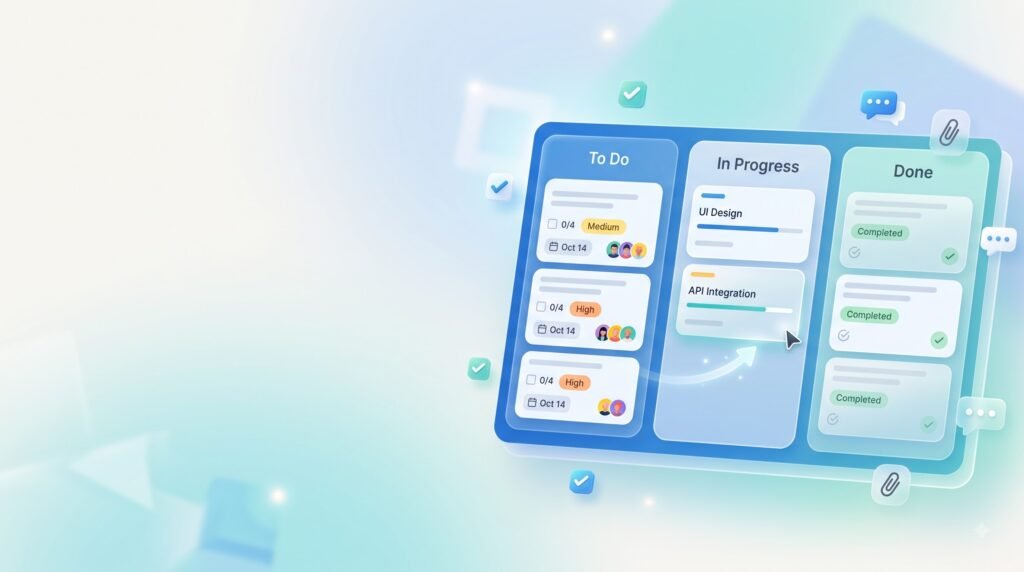
Trello uses a visual board-and-card approach that can be useful for teams that want to understand work at a glance.
A board might contain columns such as Backlog, Ready, In Progress, Review, Testing, and Done. Each card represents a task or deliverable.
Where it fits
Trello is worth considering when:
- Your team has one main product or a small number of projects.
- You need a clear overview of active tasks.
- Most work can be represented as cards moving through a workflow.
- You want to start with a simple board before adopting more formal processes.
For example, a founder coordinating a designer and two developers might use a board to track landing-page updates, onboarding, bug fixes, and launch preparation.
What to consider
A board alone may not provide all the engineering-specific links, dependency management, reporting, or release workflows your team requires.
Check the available features, automation limits, integrations, and pricing before deciding that a basic board will support your long-term workflow.
Choose Trello if: Your team values visual simplicity and does not need complex engineering workflows.
Look elsewhere if: You are spending too much time creating separate boards, maintaining duplicate tasks, or manually connecting technical work to releases.
ClickUp: the customizable workspacefor multiple work types
ClickUp unifies task management with the ability to collaborate on documents, manage sprints, and create reports, among other plan-dependent features.
Its official pricing page lists a Free Forever tier and paid tiers with additional capabilities. Check the limits to see if it offers the capability you need.
Source: ClickUp pricing.
Where it fits
ClickUp is worth evaluating if your team wants to coordinate several kinds of work in one place:
- Product development and bug tracking.
- Design tasks and launch preparation.
- Documentation and internal processes.
- Sprint planning and reporting.
- Work that involves developers and non-technical colleagues.
Maybe you’re a small start-up with developers, a designer, and a founder who handles marketing. Instead of everyone working in different programs, wouldn’t you prefer to have everything in one place?
What to consider
Customization can help a team match the tool to its process, but it can also encourage unnecessary complexity.
Before creating custom statuses, dashboards, and automation rules, identify the decisions the team needs to make. Configure the minimum necessary views first, then add more only when a real workflow problem appears.
Choose ClickUp if: Your team wants a customizable workspace for both engineering and non-engineering tasks.
Look elsewhere if: Your main need is a lightweight development workflow and the additional workspace features would go unused.
Feature Comparison: How the Five Tools Differ
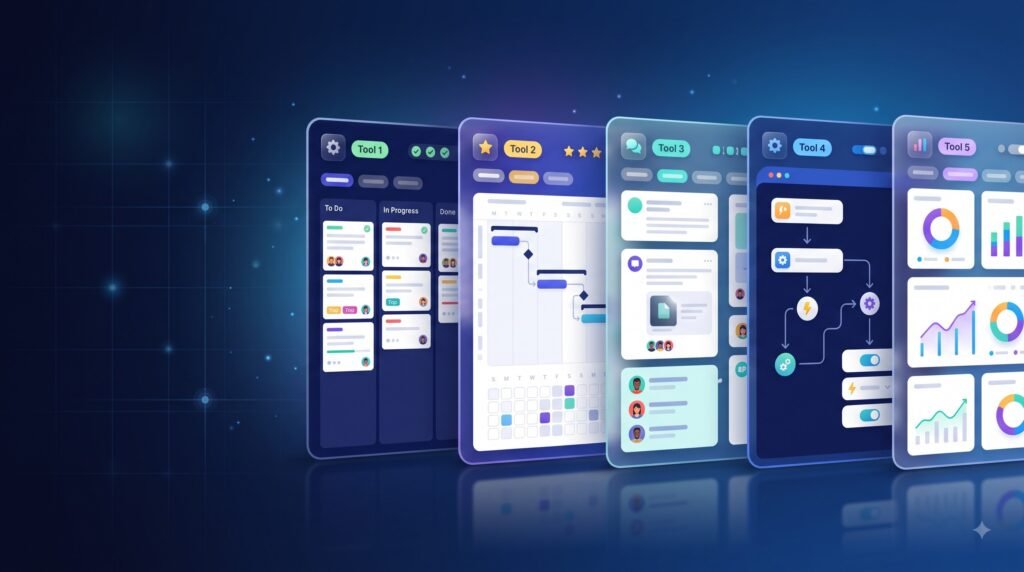
The following table is a decision-oriented summary, not a benchmark based on hands-on testing. The available features may vary depending on the particular integrations, settings and the subscription plan.
| Evaluation criterion | GitHub Projects | Linear | Jira | Trello | ClickUp |
| Primary fit | Repository-linked planning | Product engineering | Structured agile workflows | Visual task tracking | Customizable workspace |
| GitHub-centric workflow | Native ecosystem | Verify integration details | Verify integration details | Verify integration details | Verify integration details |
| Sprint planning | Configurable through project workflows | Evaluate current features | Documented Scrum support | Check current plan and integrations | Sprint management advertised |
| Simple Kanban workflow | Yes, through project views | Evaluate current views | Documented Kanban support | Core board model | Available |
| Documentation | Repository documentation and linked resources | Evaluate current capabilities | Often paired with knowledge tools | Usually requires supporting resources | Collaborative docs advertised |
| Customization | Project fields and views | Evaluate current options | Extensive workflow configuration | Board and card customization | Extensive workspace configuration |
| Free option | Free access to Issues and Projects | Verify current limits | Free for up to 10 users | Verify current limits | Free Forever tier |
| Main consideration | Is it enough for non-code planning? | Does it justify a separate tool? | Will the configuration add overhead? | Will customization be complicated? | Will customization be complex? |
Sources for verified product statements: GitHub, Atlassian, and ClickUp. The specifics of linear and Trello’s current plan are taken from their official page and may vary at the time of publication.
Pricing: What Should a Small Development Team Budget?
Project management software pricing is only one part of the cost. The time required to configure the system, maintain integrations, migrate tasks, and teach the team how to use it also matters.
Some tools offer free plans. Paid subscriptions can introduce additional capabilities, higher usage limits, administration features, and reporting.
Example: A five-person team
Suppose a team of five developers evaluates a plan advertised at $10 per user per month.
The basic subscription calculation is:
5 users × $10 = $50 per month, or $600 over twelve months.
This is a hypothetical budgeting example, not the quoted price of any particular product. Taxes, billing frequency, currency conversion, add-ons, and plan eligibility may change the final cost.
Before subscribing, check:
- Whether the required features are included in the selected tier.
- Whether contractors, guests, or stakeholders count as paid users.
- Whether annual billing is required for the displayed rate.
- Whether AI or automation features have separate allowances or costs.
- Whether you need paid integrations or additional storage.
- Whether the team can export its work if it later changes tools.
For a small startup, a free plan that supports the actual workflow may be a better choice than a paid plan full of unused features.
Which Tool Fits a Team of 3, 5, or 10 Developers?
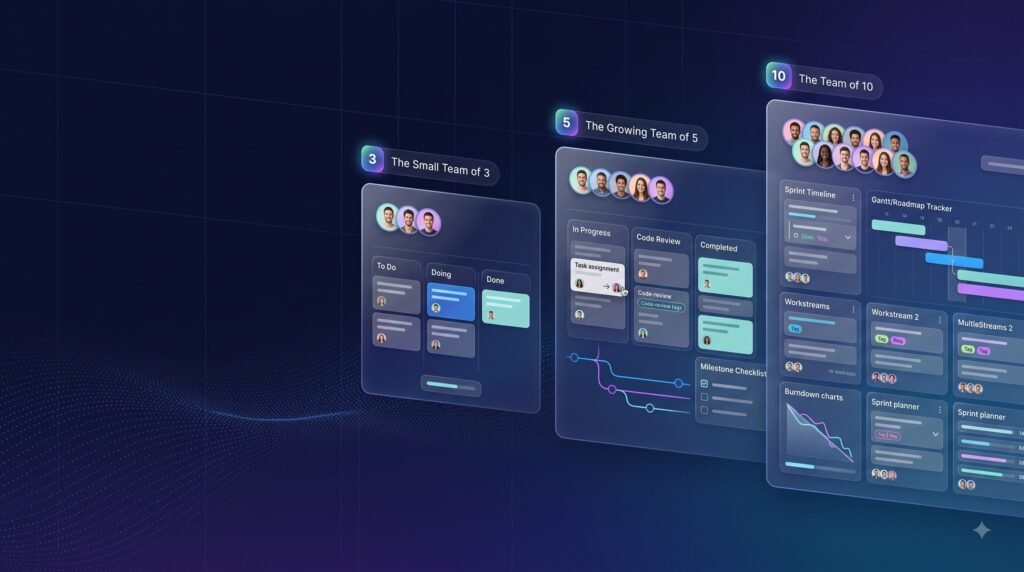
Team size is a useful starting point, but workflow complexity matters just as much.
A team of three
Start with the fewest moving parts. If the developers already use GitHub and only need issue tracking, priorities, and a project board, test GitHub Projects before adding a separate subscription.
A simple board may also be sufficient if the team rarely needs formal sprint reports or cross-project planning.
A team of five
At this size, clarify how product decisions reach developers and how completed work is reviewed.
Compare GitHub Projects, Linear, and Jira using the same sample feature. Look at task ownership, backlog management, pull-request links, blockers, and how much work is required to keep the board accurate.
A team of ten
With ten developers, multiple workstreams or dependencies may make more structured workflows useful.
Evaluate whether the team needs sprint reporting, more detailed permissions, dependency visibility, or coordination between frontend, backend, design, and QA.
Do not assume that ten developers automatically need enterprise-style project management. Add structure only where the existing workflow is failing.
Scrum, Kanban, or a Simple Task Board?
It should be helpful to your process rather than adding unneeded ceremony. Scrum can be helpful when you have the team plan out work in chunks, commit to a goal, and review their progress.
Kanban can be useful when work arrives continuously and the team needs to see priorities, work in progress, and blocked tasks.
A simple task board might be all you need for an early product with a small team that isn’t dealing with too many dependencies and only has a few tasks to work on.
A team can also start with a less rigorous set of steps and move to a more elaborate set of procedures as needed.
Whatever approach you take, make sure that everyone understands what each state means. For example, “In Review” should mean that an implementation is awaiting review, not that the developer has simply stopped working on it.
A Practical Seven-Step Tool Trial
Don’t select software based only on a feature page or a polished demo. Run a short trial with real work.
Step 1: Choose a real feature
Pick a small feature or bug that the team expects to work on soon.
Step 2: Create the work items
Write the goal, acceptance criteria, owner, and priority. Break the task into smaller items only where that helps coordination.
Step 3: Connect development work
Create or link the relevant issue, branch, and pull request. Check if the connections work the way your team expects.
Step 4: Test collaboration
Ask a developer and a non-technical stakeholder to find the current status, next step, and any blocker without asking for a separate explanation.
Step 5: Test a change
Change the priority or scope and see whether the team can understand the decision and its impact.
Step 6: Measure the administrative work.
Check how much time is spent by your teams on keeping track of tasks, maintaining relationships, and producing status quo reports. These are all administrative activities, and you are not saying that one tool requires more hours of administrative work than the other.
Step 7: Evaluate after a work cycle.
Ask your teams how did the tool helped to make information more accessible, avoid redundant work, and enable transitions and handoffs.
Common Mistakes When Choosing Project Management Software

Choosing based on feature count
A long feature list does not tell you whether a tool fits your team. Start with the problems you need to solve.
Tracking the same work in multiple places
If a task exists in both a project board and a spreadsheet, decide which system is authoritative. Avoid redundant updates – unless there is a good reason to do otherwise.
Creating too many workflow stages
Every additional status or required field adds a decision. Start with a manageable set of well-defined stages, and iterate only where – and if – necessary.
Treating AI as a substitute for project clarity
AI features may assist with summaries, task descriptions, or other supported workflows. They can’t compensate for ambiguous requirements, lack of ownership or changing priorities without explanation.
Assess features of the AI against a certain task and check which plan contains them.
Overlooking documentation and handovers
A task that is complete may not be maintainable by another developer. Make sure that important technical details and setup instructions are available for others to access.
How Non-Technical Founders Can Track Development Progress
A founder doesn’t need to monitor every code commit to understand how a product is progressing.
Ask the development team to agree on a few shared indicators:
- Which milestones are complete?
- What is being built now?
- What is blocked, and who needs to make a decision?
- What is ready for review or testing?
- What changed in the scope or timeline?
- What will be demonstrated next?
A short weekly review can answer these questions without requiring a separate daily report from every developer.
If you are working with an external development partner, agree on the project tracker, communication channel, milestone definitions, and decision-making process at kickoff.
For founders planning a new product, BkAbhi’s MVP development process guide provides related context on organizing work from validation through launch.
The broader principle is simple: project management software should make progress and decisions easier to see. It should not become a substitute for clear communication between the founder and the people building the product.
How to Choose the Right Tool

Use this checklist before making a final decision.
- Start with your existing stack. If your team already uses GitHub, give the team’s project tracking feature a try.
- Identify your workflow. Decide whether you need continuous Kanban, formal sprints, or basic task coordination.
- List essential integrations. Make sure to compare the particular connections that you need, not the entire directory of integrations.
- Set your budget: Compare the plans, the number of users in your team, billing options, and extra fees.
- Test a real feature. Follow it from initial task to review and completion.
- Check permissions and exports. Make sure the setup meets your access requirements and that you understand how to retrieve your work.
- Choose the simplest tool that works. Add complexity only when it solves a demonstrated problem.
Final Comparison Summary
There is no single project management tool that suits every small development team.
GitHub Projects is a sensible starting point for teams already working in GitHub. Linear is worth evaluating for a dedicated product-engineering workflow. Jira suits teams that benefit from more structured agile planning. Trello works as a candidate for straightforward visual coordination, while ClickUp offers a customizable workspace for teams handling several kinds of work.
Compare the tools using the same real feature, not just their marketing pages. The best choice is the one your team can maintain consistently, with enough visibility to deliver work and respond to changes without unnecessary administration.
For a small dev team, a clear workflow and consistent communication will usually matter more than having every project management feature available.
Author Bio
Jeevesh Tripathi
Email: jeevesh@bkabhi.com
Jeevesh Tripathi writes research-based content about technology, AI, software, SaaS, and digital business tools. His work focuses on practical comparisons, evidence-based evaluation, and helping founders understand technical products and development decisions without unnecessary jargon.
His approach emphasizes checking official documentation, distinguishing verified information from analysis, and presenting practical trade-offs so readers can make informed decisions.